
Team workspaces
Invite teammates on Business, choose what they can access, set end dates, remove or leave a team and switch workspaces.
On this page
A team workspace lets other people work on your apps with their own login — colleagues, a client, or the developer you hired. You decide which apps each person can open and for how long, and you can remove them at any time. Your billing, signing keys and the team itself stay under your control.
Team seats are included in the Business plan: 5 people, including you. See Pricing.
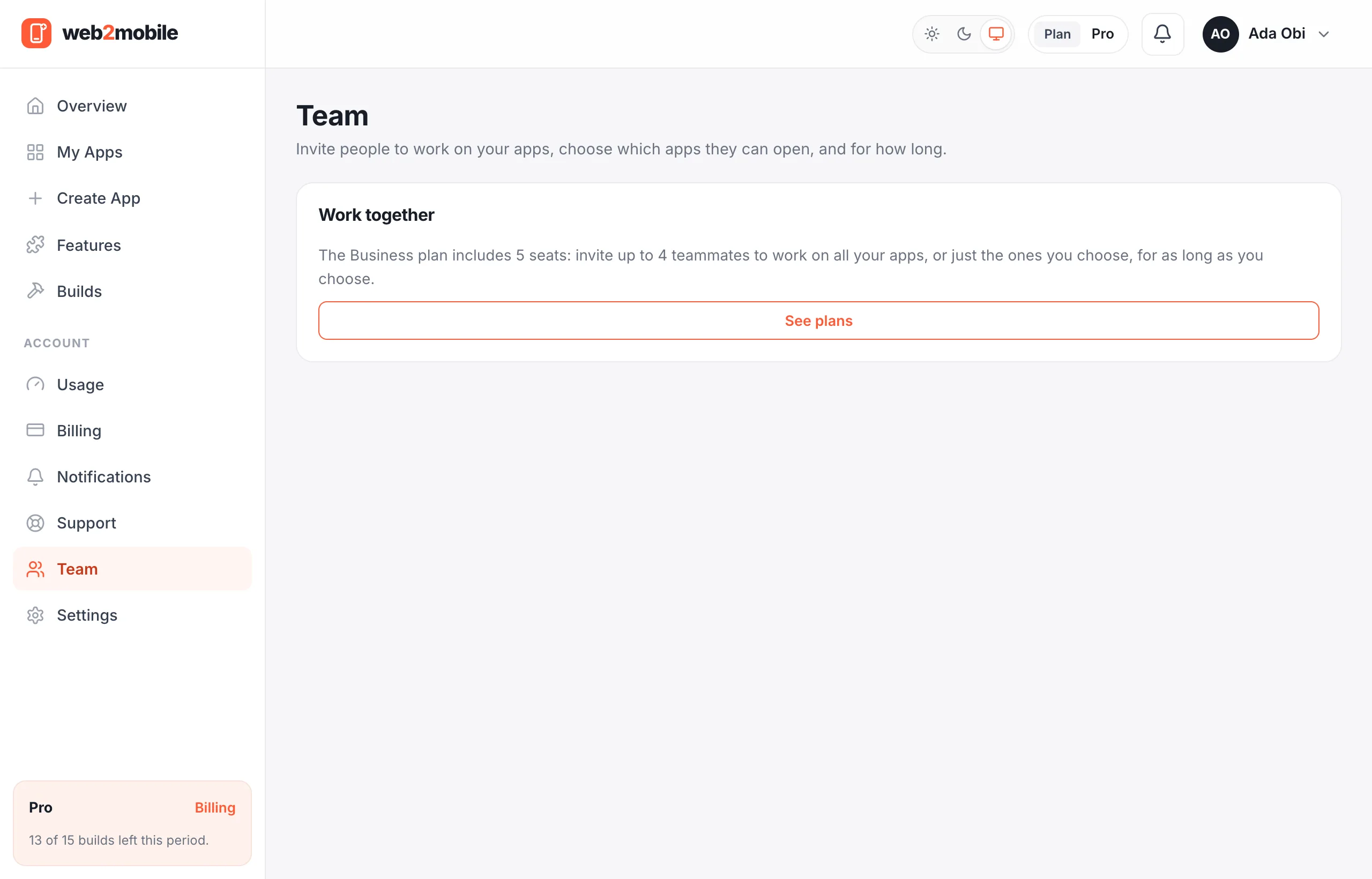
Team seats are included in the Business plan (5 people including you).
- Go to Team and enter your teammate's email.
- Choose Apps they can work on: every app (including ones you create later), or only the apps you pick.
- Optionally set a date when their access ends.
- Send the invite. They get an email with a link that works for 14 days.
- Open the invite email and tap the link. It works for 14 days.
- Sign in with the email address the invite was sent to — or create a free account with that email if you don't have one yet.
- Tap Accept. You're switched into the team's workspace straight away.
Not interested? Tap Decline and the invite is removed. Signed in with a different email? You'll be asked to sign out and continue with the invited address.
Teammates can customize, build and share the apps they have access to, using the workspace owner's plan. Only the owner can manage billing, the team, archive or delete apps, and export signing keys.
- Go to Team and find the person.
- Change Apps they can work on (every app, or selected apps) and the date their access ends, if any.
- Save. The change applies to their next action — no need for them to sign in again.
Invite expired or lost? Invite the same email again — a new link is sent and the old one stops working.
- Owner: on the Team page, remove the person. They lose access immediately and the seat is free for someone else.
- Teammate: on the Team page, choose Leave team. You go back to your own account.
- When an end date passes, access stops automatically and the seat is freed — renew it any time from the Team page.
Builds teammates start use the workspace owner's plan and build credits — teammates never pay for the owner's apps. If the owner's plan no longer includes team seats (for example after moving to a smaller plan), teammates lose access to the workspace until it's upgraded again; nothing in the apps is deleted.
If you belong to a team, use the Workspace menu at the top of the sidebar — or on a phone, tap Account in the bottom bar — to switch between your own account and the team. Everything you see (apps, builds, notifications) follows the workspace you choose.