
Publish on Google Play
Build an AAB, understand your signing key and upload your first release.
On this page
- A Google Play developer account (a one-time fee paid to Google).
- A plan that includes AAB builds (Pro or Business).
- Your app's icon, a short and full description, screenshots and a privacy policy link for the store listing.
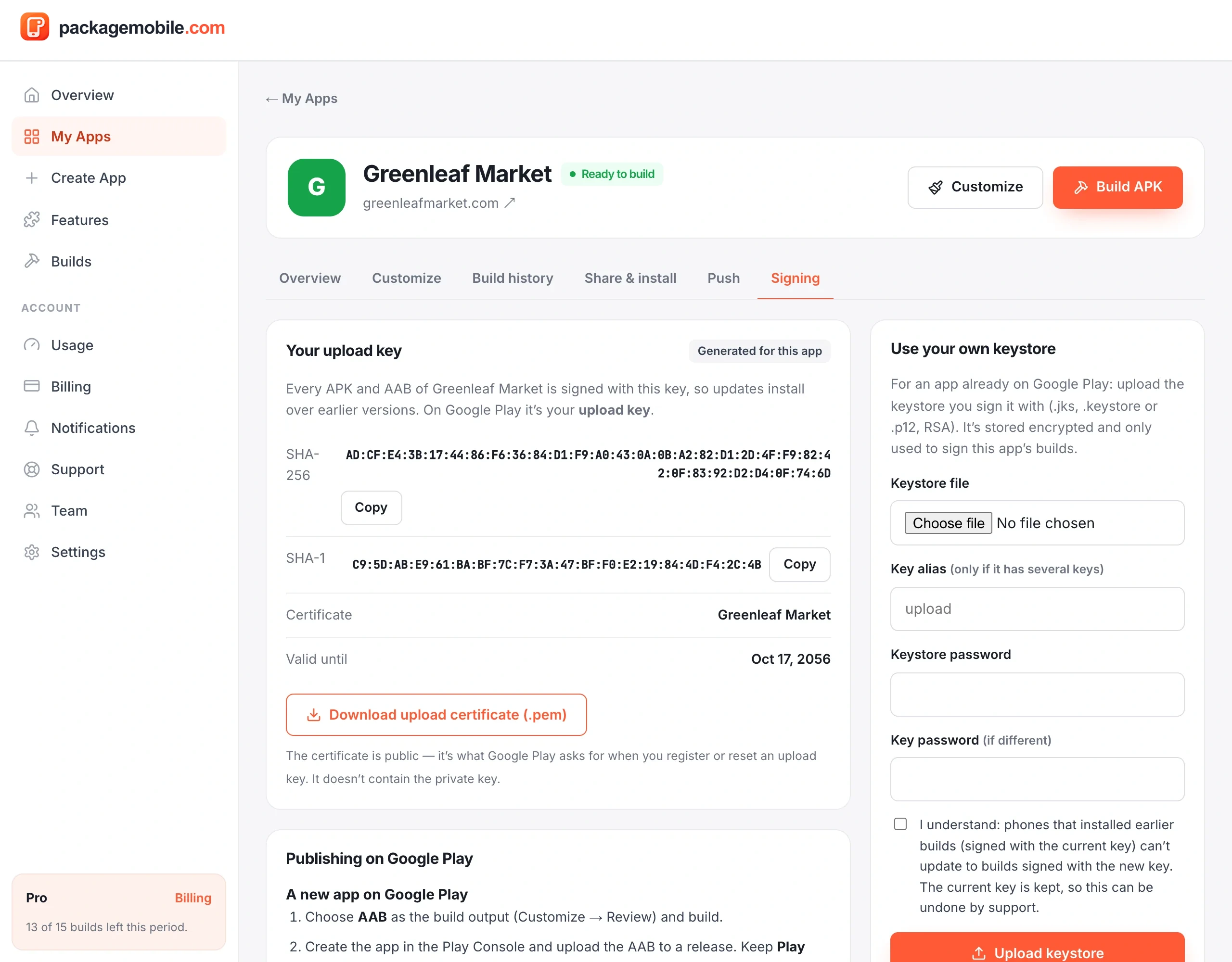
Every app gets its own signing key, generated and stored securely for you. On Google Play this is your upload key: Google keeps the key that signs what people download (Play App Signing), and we sign your uploads.
- Certificate (.pem) — public; Google Play asks for it if you ever register or reset an upload key.
- Back up the key — download a password-protected
.p12file to keep safe. Anyone with it and its password can sign updates as you — never share it. - Already on Google Play with another key? Upload that keystore under Use your own keystore before building, so updates are accepted.
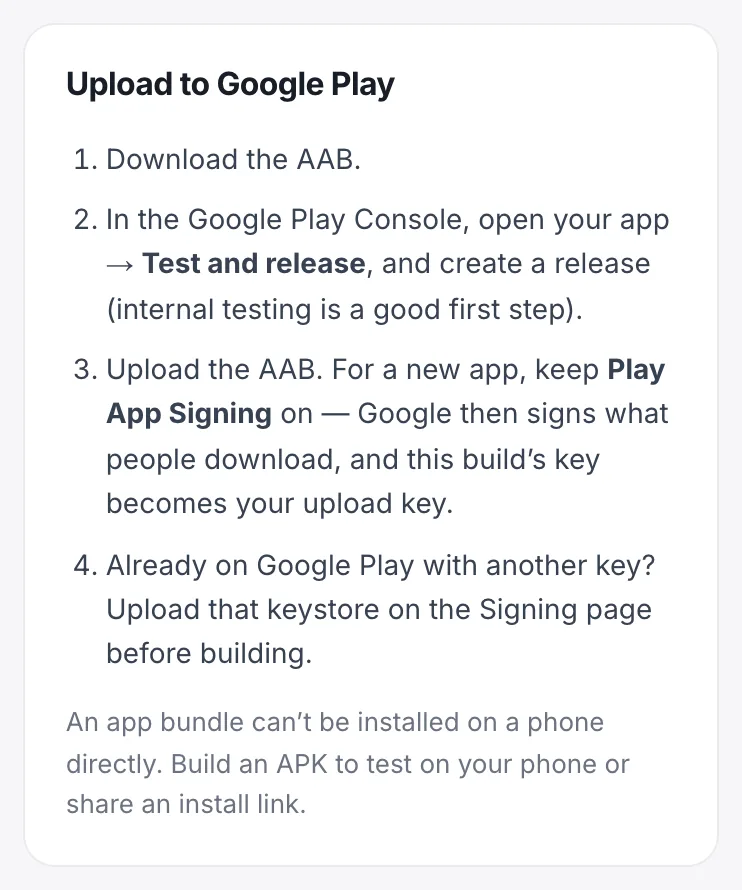
- Build an AAB and download it.
- In the Google Play Console, create your app (use the same app name; the package ID comes from the AAB).
- Go to Test and release and create a release — Internal testing is a good first step.
- Upload the AAB. For a new app, keep Play App Signing on.
- Fill in the store listing, content rating and Data safety form, then send for review.
Build a new AAB (the version goes up automatically) and upload it as a new release. Content changes on your website show up in the app straight away — you only need a new release when you change the app itself (name, icon, features…).
Google Play reviews every app. Make sure you own the website (or have permission), your site works well on a phone and isn't just a thin wrapper of someone else's content, and your privacy policy describes what data your website collects. Apps that break Google's rules can be rejected or removed by Google.