
Verify you own your website (optional)
Optional and recommended: add a meta tag, a small file or a DNS record to mark your app as trusted.
On this page
Verifying is optional — you can build, install and share your app without it. It proves you control the domain (just like Google Search Console) and marks your app as trusted. If you'd like our team to help you publish on Google Play — which only accepts apps of websites the publisher owns or may use — we'll ask you to complete it, usually through your support request. It doesn't change how your website looks.
Was this helpful?
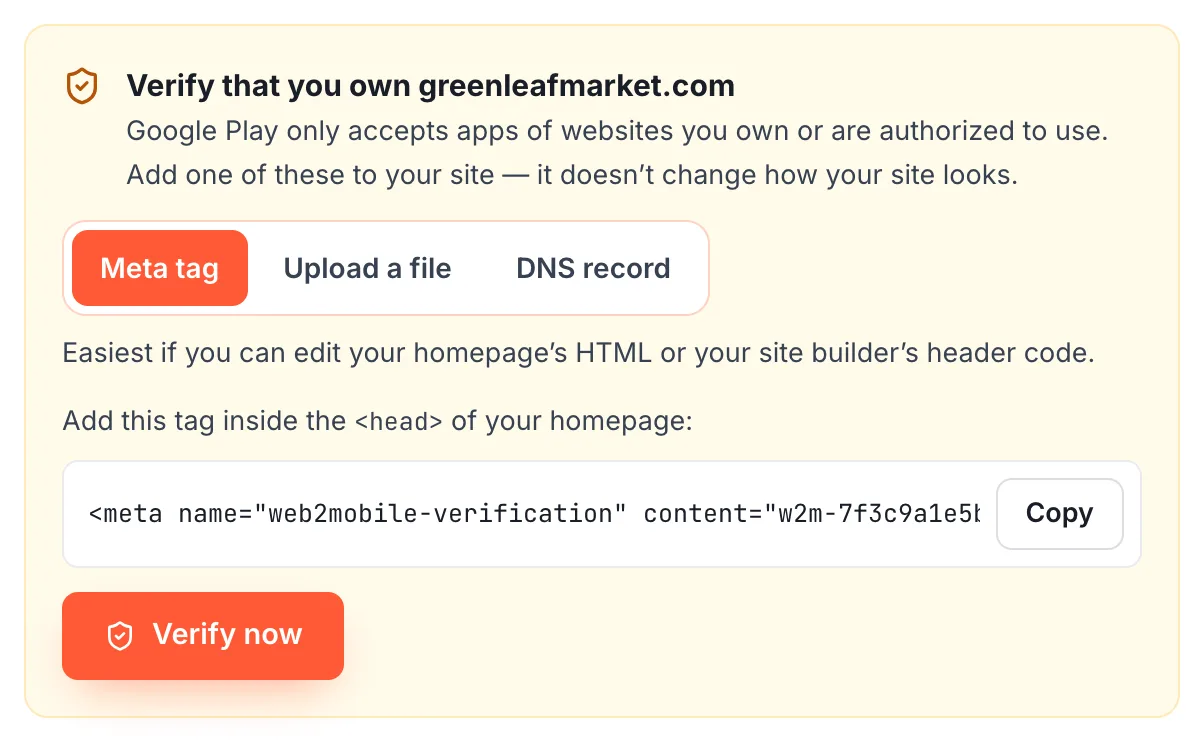
- On the Build step, choose Meta tag and tap Copy.
- Paste the tag inside the
<head>of your homepage. In site builders (WordPress, Shopify, Wix…) look for Custom code, Header code or Theme → Edit code. - Publish your website, then come back and tap Verify.
Was this helpful?
- Choose Upload a file.
- Create a text file named
web2mobile-verification.txtcontaining only the code shown. - Upload it so it opens at
https://yourdomain.com/.well-known/web2mobile-verification.txt. - Tap Verify.
Was this helpful?
- Choose DNS record and copy the value.
- At your domain provider, add a TXT record on your domain with that value.
- Wait a few minutes (sometimes longer), then tap Verify.
DNS changes can take a while to appear. If Verify says the record isn't found yet, try again later — nothing is lost.
Was this helpful?
- Make sure you changed the same domain as your app's website (with or without
www). - Clear your website's cache or CDN after adding the tag, then try again.
- The file must contain only the code — no extra spaces or HTML.
- Still stuck? Contact support and tell us which option you tried.
Was this helpful?
Still need help?Our team can look at your app with you.
Contact support