
Create your first app
Enter your website, pass the website check and start setting up your app.
On this page
- Your website must be public (anyone can open it without a VPN) and use https://.
- It should work well on a phone browser — what you see on mobile is what the app shows.
- Ideally, you own the website or have the owner's permission. It isn't required to build, but Google Play only accepts apps of websites you may use — so it matters when you publish.
Was this helpful?
- Tap Create App (or the + button on a phone).
- Type your website address, e.g.
yourstore.com. Thehttps://is added for you. - Optionally give the project a nickname (only you see it).
- Optional but recommended: tick I own this website or have the owner's permission. It marks your app as trusted and lets us help you through Google Play publishing. You can skip it and confirm later on the Review step.
- Tap Check website.
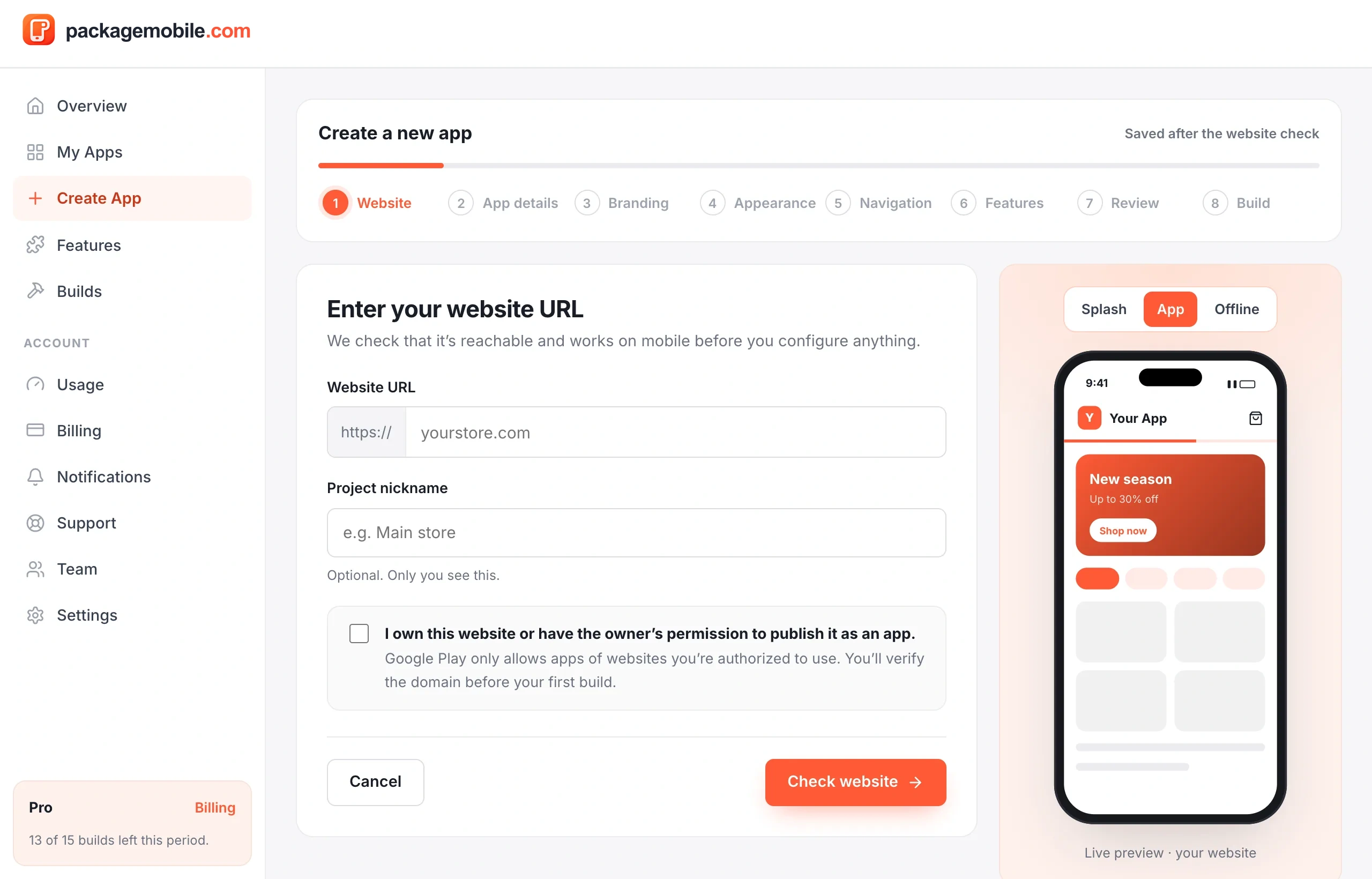
Was this helpful?
We open your website the way an app would and check that it's secure (HTTPS), responds, looks right on a phone and can be shown inside an app. You'll see one of three results:
- Reachable — all good, continue.
- Needs attention — it works, but something may not behave perfectly inside an app. Read the note next to each item.
- Can't be reached — fix the address or your website first. Your other choices are kept.
A successful check doesn't guarantee every feature works inside an app. Always test sign-in, payments and file uploads on your phone before sharing your app.
Was this helpful?
After the website check, every change saves automatically (you'll see All changes saved at the top). Leave at any time and pick up where you left off from My Apps.
Was this helpful?
Still need help?Our team can look at your app with you.
Contact support